Posts

Showing posts with the label Data source

Announcing the New Data Connectors for Excel and CSV for Report Creation in Fabric
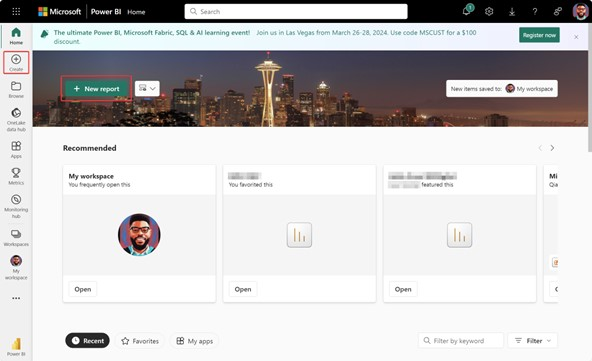
Image
We are thrilled to announce the public preview of our new Excel and CSV data connectors for creating Power BI reports in Fabric. This new feature is a significant milestone in our ongoing commitment to providing the most comprehensive, unified, and user-friendly cross-platform experience for Power BI users. By integrating Excel and CSV file support directly into the report creation experience in Fabric, we are streamlining workflows for data analysts and other information workers while making it easier than ever to access, analyze, and collaborate on data. Key Features of the New Data Connectors The new Excel and CSV data connectors are designed with flexibility, efficiency, and ease of use in mind. Here are some of the key features: Direct Import : With just a few clicks, you can now import Excel and CSV files directly from OneDrive or a local computer folder (via OneDrive) into their Fabric workspace. This eliminates the need for intermediate storage or conversion steps, significantl...

New data source and gateway management experience

Image
Recently replaced the “manage gateway” experience with a new interface, making it easier to manage your gateways and data sources. With this new experience, you also get the ability to manage and create the Vnet gateway and use the recently released additional security roles. How to create new data sources Navigate to powerbi.com Navigate to the  Manage gateways  page To create a new data source, click on the  New  button in the top ribbon Select the gateway you want to create a data source for and give the data source a name Select the  Data source type . In this example we are using SQL Add the  Server  and  Database  and fill out the credentials Click on  Create  to create the data source. On success you see a message that the data source was created successfully Optionally, you can also set  Single Sign-On  for specific data sources and the  Privacy level How to view/change setting of data sources Select one of th...

How to change data source connections in Power BI

Image
Step 1: Open Power BI desktop Step 2: Go to files, select options and settings  And select data source settings Step 3: Here we can change data source connections to global permissions from data source in current file and vise versa Step 4: Edit credentials Change privacy level of data source