Posts

Showing posts with the label Power Query

New Power Query experience in Power BI Desktop (Preview)

Image
Getting data is the starting point of almost every Power BI workflow. It’s where users connect to their data, explore what’s available, and begin shaping it for analysis. As a joint effort between the Data Integration and Power BI teams, we are introducing the Preview of the new Power Query Get Data experience in Power BI Desktop —a completely redesigned way to help you discover and connect to your data faster.  Why we built a new Get Data experience? Over time, the number of connectors and data sources in Power BI has grown significantly. While this brings flexibility, it also introduces friction—especially when users are trying to quickly find the right data source or understand how to get started. At the same time, we’ve been evolving Power Query across Fabric experiences. This created an opportunity to rethink the Get Data flow end-to-end and align experiences across Desktop, Fabric, and beyond. The result is a modernized experience built on three key principles: Faster discove...
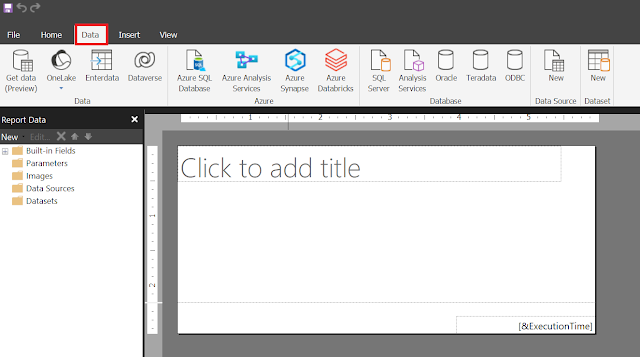
Get data with Power Query available in Power BI Report Builder (Preview)

Image
We are pleased to announce the ability to  use the Get Data   experience and  connect to  100+  data   sources such as Snowflake,  Databricks and AWS Redshift from Power BI Report Builder. You can  transform the data and select the M-Query to be used for the   paginated  report.  All you need is the latest version of Power BI Report Builder  Install Power BI Report Builder   from the Microsoft Download Center.     For this blog, we are creating an NYC Taxi Report paginated report with data in a Snowflake backend. To do this, l aunch Power BI Report Builder and navigate to the “Data” tab. Select “Get Data” from the toolbar.   This will launch the “Get Data” experience. You can search for the data source that you want to connect to or  “ View more ” .   For this blog, I selected a  S nowflake  data source.  Enter the server, warehouse  and,   credentials . You can use organiz...

Deep Dive into Power Query and M Programming

This Dev camp session will be led by Alex Power from the Power BI CAT team. Alex will teach you how to get started with creating custom functions to aid in the reusability of transformation patterns and how to add robust documentation to your Power Query queries. As this is a code first session, we’ll explore primitive and structured data types, implicit and explicit return values, the Power Query / M language VS Code extension and more. The information presented in this session will be applicable to all places where Power Query is found. Campers should be familiar with creating and testing queries using Power Query. Previous experience reading and writing M code in the Advanced Editor window is helpful but not required. Attendee Prerequisites : Campers should be familiar with creating and testing queries using Power Query. Previous experience reading and writing M code in the Advanced Editor window is helpful but not required. Click here !  to join us at Power BI Dev Camp on ...

Keyboard shortcuts in Power Query

 Query Editor QUERY EDITOR Action Keyboard shortcut Go to column Ctrl+G Add column from examples Ctrl+E Data Preview DATA PREVIEW Action Keyboard shortcut Copy cells/rows/columns Ctrl+C Select all cells Ctrl+A Select column Ctrl+Space When the focus is on the column header WHEN THE FOCUS IS ON THE COLUMN HEADER Action Keyboard shortcut Filter menu Alt+Down arrow key Change column type menu Ctrl+Down arrow key Move focus to column header on the left Ctrl+Left arrow key Move focus to column header on the right Ctrl+Right arrow key Select first column Home Select last column End When the focus is on the cell WHEN THE FOCUS IS ON THE CELL Action Keyboard shortcut Select first cell of the row Home Select last cell of the row End Select first cell of the column Alt+Home Select last cell of the column Alt+End Select first cell of the first row Ctrl+Home Select last cell of the last row Ctrl+End Select the cell one page up Page up Select the cell one page down Page down Editable Grid (Ente...