Additional gateway security roles for Power BI

We are excited to announce additional gateway security roles for Power BI!

These additional security roles allow for more granularity in assigning roles for the gateway. The new change is that non-admins of the gateway can be allowed to create connections (data sources) on the gateway. This way, your gateway admins are not the bottleneck anymore for creating connections (data sources).

Security roles

There are three security roles for the on-premises data gateway. When you install an on-premises data gateway, you automatically become the admin of the gateway. There can be multiple admins on the gateway.

The three security roles for the on-premises data gateway are:

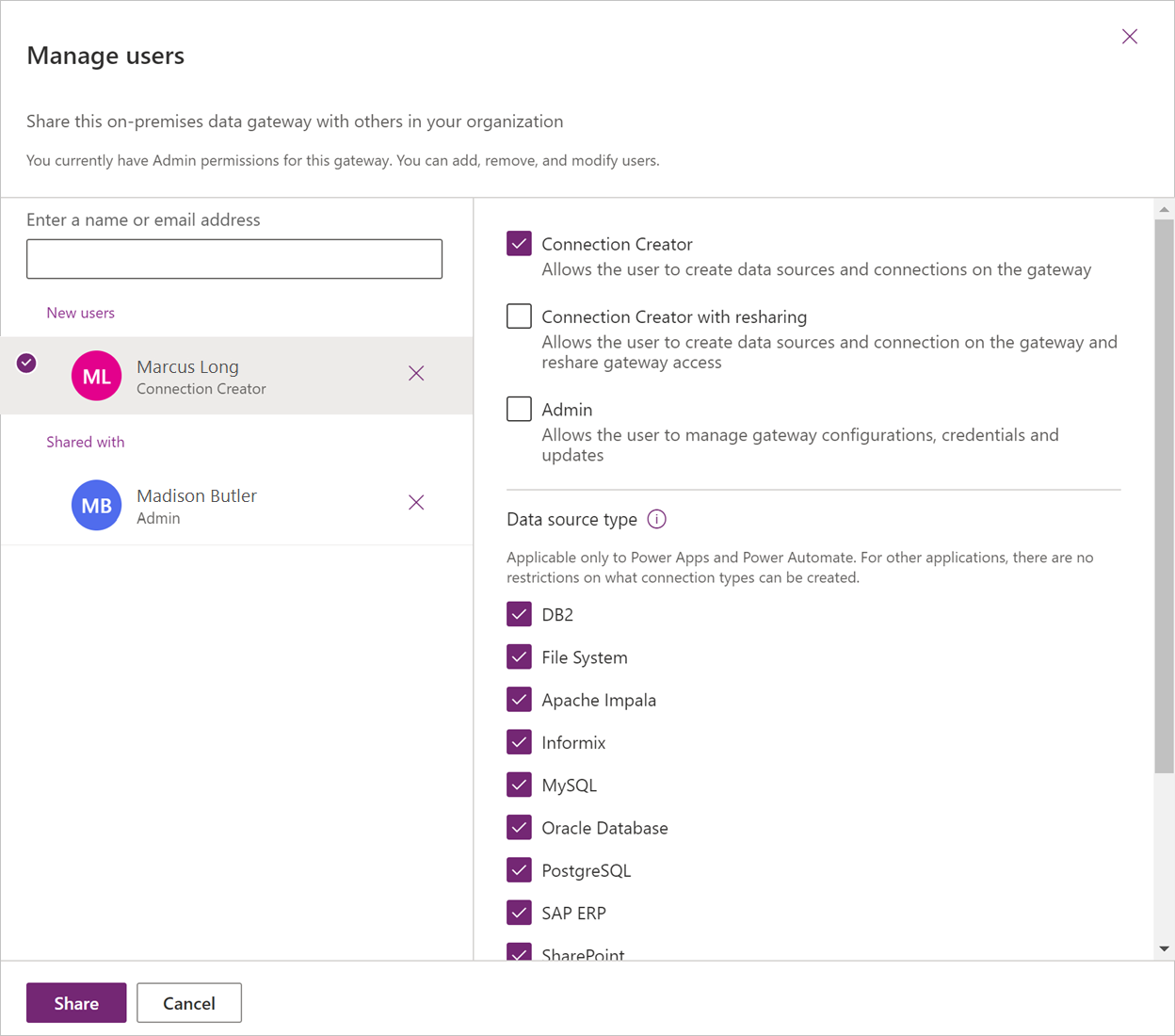
  • Admin: An admin can manage and update the on-premises data gateway. An admin is allowed to create connections (data sources) on the gateway. An admin is allowed to manage (add/delete) users with admin, connection creator, and connection creator with sharing roles on the gateway. An admin can also manage access to all connections created on the gateway.
  • Connection creator: A connection creator is allowed to create connections/data sources on the gateway. A connection creator can also test if the gateway is online or offline. A connection creator can’t manage or update the gateway and can’t add or remove others on the gateway.
  • Connection creator with sharing: A connection creator with sharing is allowed to create connections/data sources on the gateway and test the gateway status. This user is allowed to share the gateway with other users as a connection creator but isn’t allowed to remove a user from the gateway.

When you create a connection (data source) in the on-premises data gateway, you become the owner of the connection (data source). Multiple owners are allowed.

The three connection roles are:

  • Owner: The owner of the connection (data source) is allowed to see and update credentials. An owner can also delete the connection. An owner can assign others to the connection with Owner, User, or User with sharing permissions.
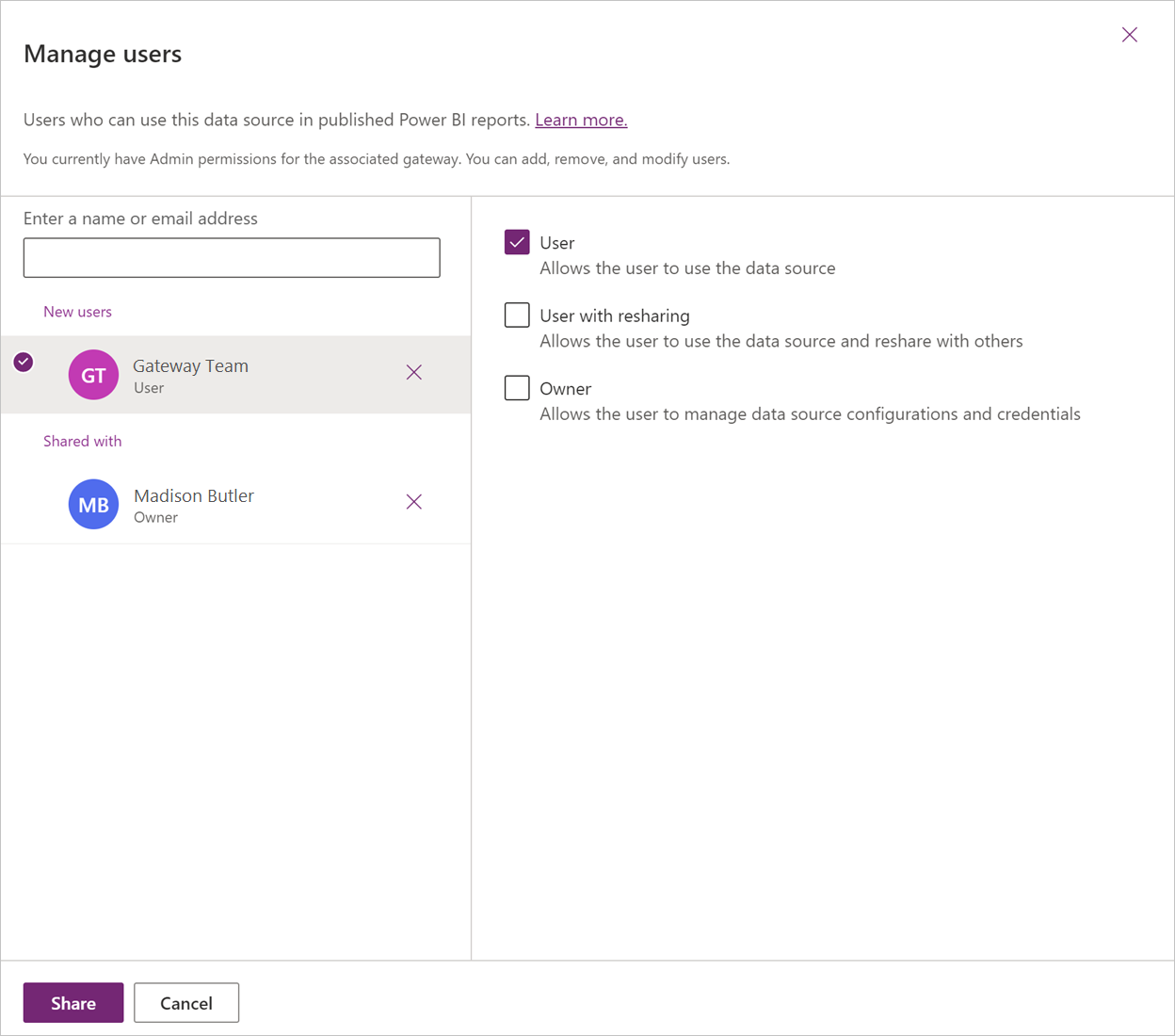
  • User: A user is allowed to use the connection (data source) in Power BI reports and Power BI dataflows, or in Power Apps. A user isn’t allowed to see or update credentials.
  • User with sharing: A user with sharing is allowed to use the connection (data source) in Power BI reports and Power BI dataflows, or in Power Apps. A user with sharing is allowed to share the data source with others with User permission.

How to manage the gateway and connection (data source) roles

To manage on-premises data gateways:

  1. Navigate to the Power Platform admin center.
  2. Navigate to the On-premises data gateways tab.
  3. Select a gateway cluster.
  4. In the top ribbon, select Manage users.
  5. Depending on your role, you can now assign users to the gateway.Image of the Manage users dialog box, with a new user emphasized, the Connection Creator role selected, and multiple data sources selected.

To manage data sources:

  1. Navigate to the Power Platform admin center.
  2. Select a connection (data source).
  3. In the top ribbon, select Manage users.
  4. Depending on your role, you can now assign users to the connection.Image of the Manage users dialog box, with a new user emphasized, and the User role selected.

Comments

Post a Comment

Hi User,
Thanks for visiting My Blog and please provide your valuable feedback and subscribe for more updates. Please don't post any spam content or comments.
Thank You

Popular posts from this blog

SSRS INTERVIEW QUESTIONS

Q: What is SSRS? Ø   SSRS or SQL Server Reporting Service is a server-based report generation software systems from Microsoft and is part of Microsoft BI. Ø   It is used for preparing and delivering interactive and variety of reports. Ø   It is administered through an web based interface. Ø   Reporting services utilizes a web service interface for supporting and developing of customized reporting applications. Ø   SSRS lets you create very rich reports (Tabular/Graphical/Interactive) from various datasources with rich data visualization (Charts, Maps, sparklines) Ø   SSRS allows are reports to be exported in various formats (Excel, PDF, word etc) Q: Explain SSRS Architecture? Reporting services architecture comprises of integrated components. It is a multi-tiered, included with application, server and data layers. This architecture is scalable and modular. A single installation can be used across multiple computers. It includes the fo...

Exception deserializing the package "The process cannot access the file because it is being used by another process."

TITLE: Microsoft Visual Studio ------------------------------ Failed to start project ------------------------------ ADDITIONAL INFORMATION: Exception deserializing the package "The process cannot access the file 'E:\SSASCube\HistoricalDataLoad\HistoricalDataLoad\bin\Development\HistoricalDataLoad.ispac' because it is being used by another process.". (Microsoft.DataTransformationServices.VsIntegration) ------------------------------ The process cannot access the file 'E:\SSASCube\HistoricalDataLoad\HistoricalDataLoad\bin\Development\HistoricalDataLoad.ispac' because it is being used by another process. (mscorlib) ------------------------------ BUTTONS: OK ------------------------------ While running SSIS package i got the error “The process cannot access the file ‘*.ispac’ because it is being used by another process”. I tried to close SSDT and run it again but, I still got the same error while compiling. Then, after searching over internet, I got...

Failed to execute the package or element. Build errors were encountered

Error: TITLE: Microsoft Visual Studio ------------------------------ Failed to execute the package or element.   Build errors were encountered. For more information, see the Output window. ------------------------------ BUTTONS: OK ------------------------------   Solution: We tried to close SSDT and run it again but, we still got the same error while running SSIS package. Then, we need to follow bellow solution: Step 1: Go to Task Manager–> Details Tab. Step 2: Locate the process “ DtsDebugHost.exe “. Kill this process. There might be multiple instances of this process. Kill all of them. Step 3: Rerun SSIS package