Enable Fabric Copilot for Power BI
Learn how to enable Fabric Copilot for Power BI in your organizational tenant. This article explains how to enable Copilot in your tenant, start using Copilot in the Power BI service, and start using Copilot in Power BI Desktop—helping your organization take advantage of AI-powered features.
Enable Fabric Copilot for Power BI in your tenant
The Fabric admin portal now enables Copilot for Microsoft
Fabric by default. Admins can disable Copilot if their organization isn't ready
to use it.
Admins need to be aware of four main settings related to
Copilot:
- Enable
Copilot setting
- Enable
sharing data across geographic boundaries
- Enable
the standalone Power BI Copilot experience (preview)
- Enable
Copilot at the capacity level
To turn on Copilot, see the following instructions.
Enable Copilot setting
Within the Fabric Admin portal, the Copilot and
Azure OpenAI Service settings control whether Copilot is enabled for
your organization and who can access it. When you enable Copilot in Fabric,
users can access Copilot across workloads. This access means Copilot isn't
limited to a specific workload, like Power BI.
To open the Fabric Admin portal:
- Go
to https://app.fabric.microsoft.com/admin-portal,
or
- In
Power BI service, select the Settings gear icon in the
upper right, and then select Admin portal.
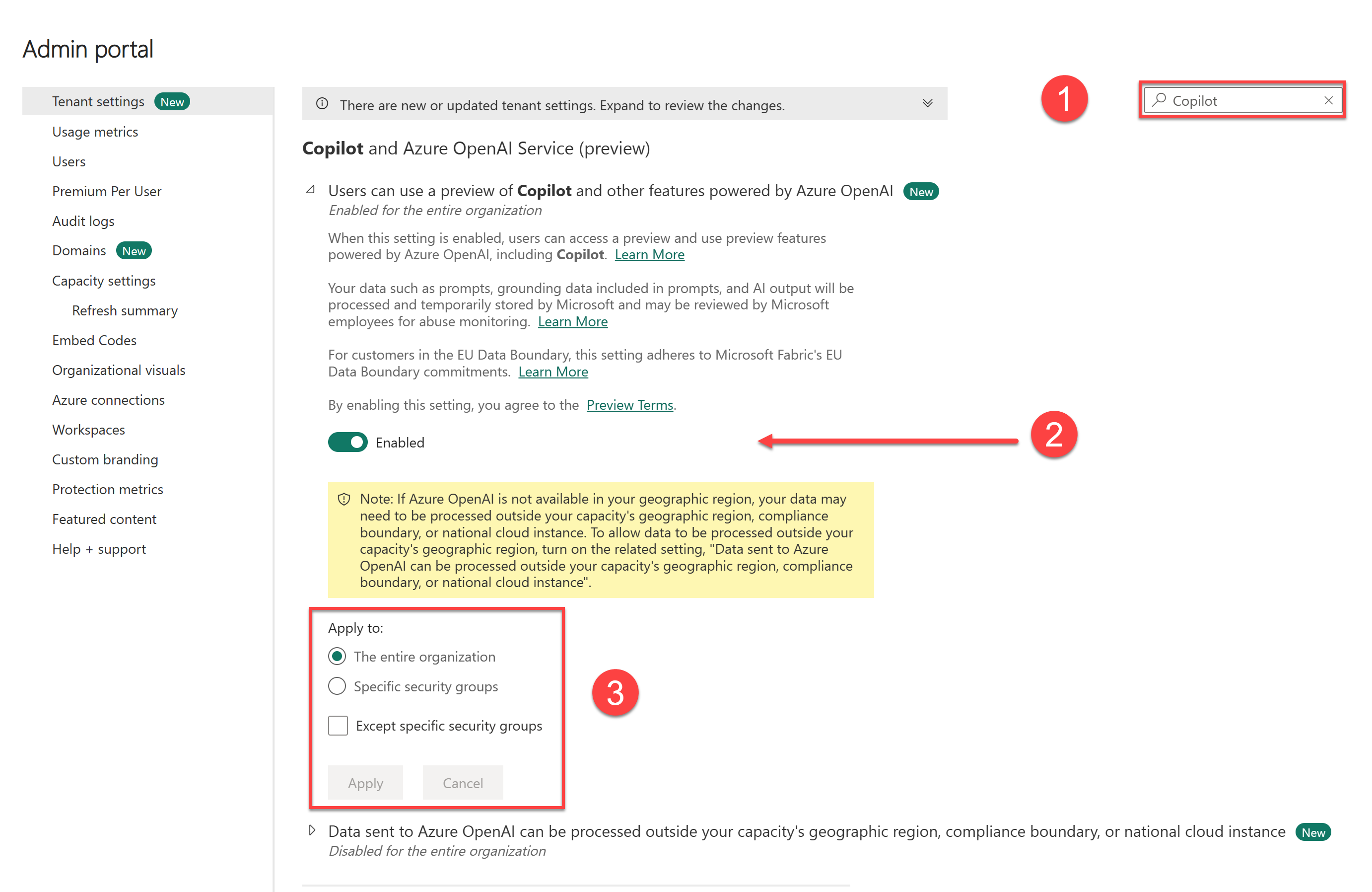
To enable Copilot in Fabric, follow these steps:
- From
the Admin portal for Fabric, select Tenant settings.
- Within
the Users can use Copilot and other features powered by Azure
OpenAI setting, toggle the Enabled switch on.
This setting is off by default.
- Specify
who can access Copilot in Fabric in the Applies to section.
- Select Apply to
save your changes.
Enable sharing data across geographic boundaries
Enabling this setting only applies if Azure OpenAI isn't
available in your geographic region.
- If
Azure OpenAI isn't available in your geographic region, you need to adjust
one more setting. This adjustment means that your data might be handled
outside of your area.
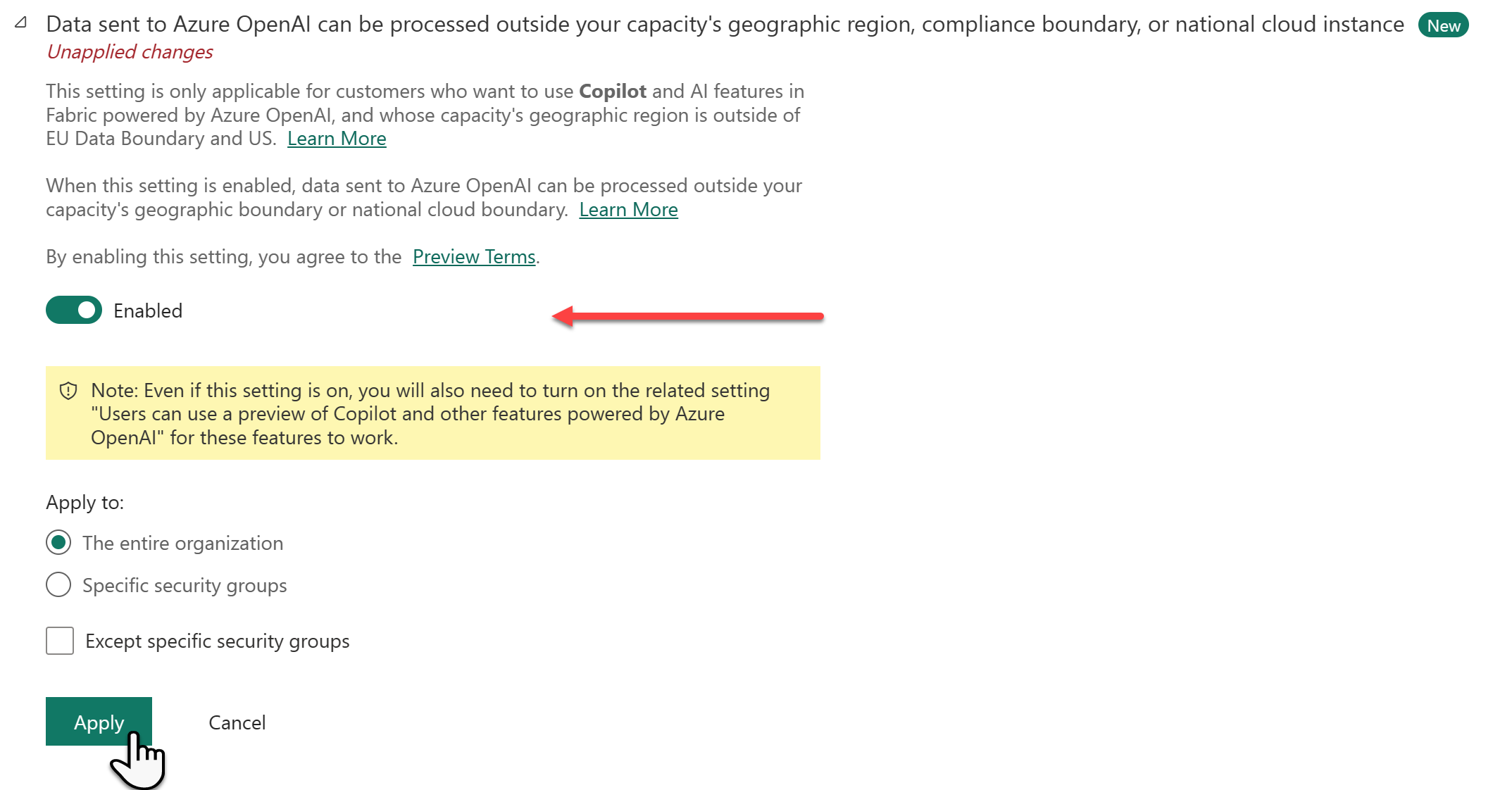
- If
you're okay with your data being handled outside of your area, switch on
the setting Data sent to Azure OpenAI can be processed outside
your capacity's geographic region, compliance boundary, or national cloud
instance, and select Apply.
Important
If you enable Copilot in Fabric, users can access Copilot
across workloads. Copilot access isn't limited to a specific workload, like
Power BI.
Enable Copilot at the capacity level
In the tenant admin portal, admins can delegate the
enablement of AI and Copilot features to capacity administrators. This
AI and Copilot setting is automatically delegated to capacity administrators;
tenant administrators can't turn off the delegation.

The cross-geo setting stays disabled and doesn't
autodelegate to capacity administrators. Capacity administrators see the Copilot
and Azure OpenAI Service (preview) settings under Capacity
settings > Fabric capacity > Capacity
name > Delegated tenant settings. By default, the
capacity setting inherits tenant-level settings. Capacity administrators can
decide whether to override the tenant administrator’s selection. This means
that even if Copilot isn't enabled on a tenant level, a capacity administrator
can choose to enable Copilot for their capacity. With this level of control,
it's easier to control which Fabric workspaces can use AI features like Copilot
in Microsoft Fabric.

Capacity admins can find delegated settings under Capacity
settings.

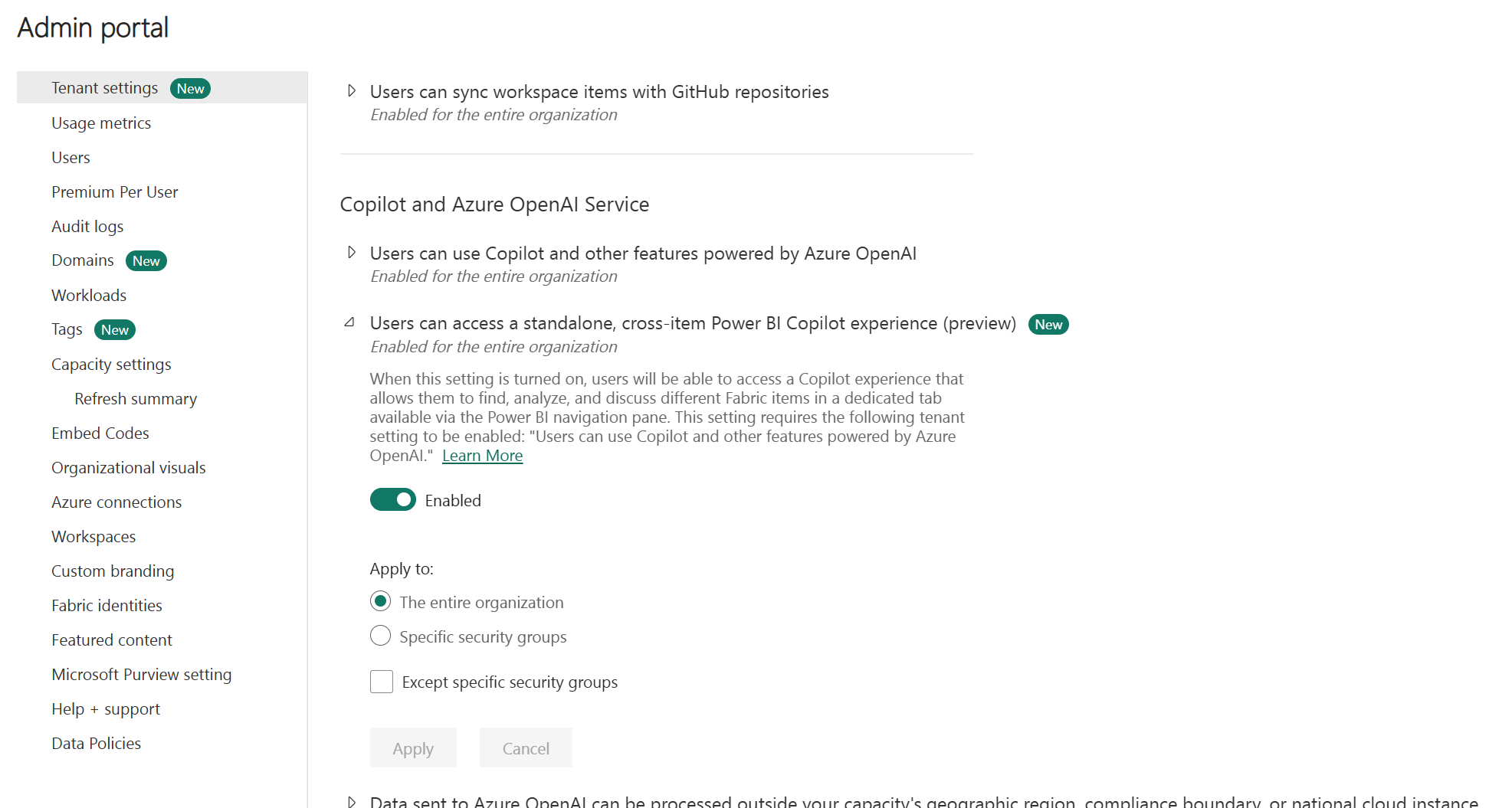
Enable the standalone Power BI Copilot experience
(preview)
When you enable this setting, users can access the
standalone, cross-item Power BI Copilot experience.
Important
- Standalone
Copilot is enabled by default: As of September 2025, this setting
(and therefore the Standalone Copilot experience) is enabled by default
for all tenants where Copilot is already turned on. To opt out of the
default activation for your tenant and hide the Copilot icon from the left
navigation bar, an admin can turn this setting off manually.
- Copilot
must be enabled at the tenant level: "Users can use
Copilot and other features powered by Azure OpenAI" must be
enabled at the tenant level to use the standalone Copilot
experience. It's not sufficient to enable it at the capacity level (that
is, if it's been delegated).
- Not
all regions are supported: The standalone Copilot experience is
only available to customers with home tenants in geos that support
Fabric—so it's only available for customers with home tenants in this
list.
Only show approved items in the standalone Copilot in
Power BI experience (preview)
When you turn on this setting, the standalone Power BI
Copilot experience searches only
for content that you mark as Approved for Copilot.

Important
Workspace admins use this setting to decide when workspaces
have enough high-value content for Copilot to search.
Use Copilot for Power BI in the service
To use Copilot in the Power BI service, ensure that reports
are in a workspace with the right capacity. The workspace must be in
either Premium
Power BI (P1 and above) or paid Fabric (F2
and above) capacity. Alternatively, you can use a Fabric
Copilot capacity.
Check your license type in the Workspace settings.
- Select More to
go to the Workspace settings.

- Apply
either Premium capacity or Fabric capacity to
the workspace and use the x to exit workspace settings.

You can see which workspace type is applied to your
workspace under Premium. If workspace types are grayed out, this
workspace doesn't have access to the appropriate capacity.
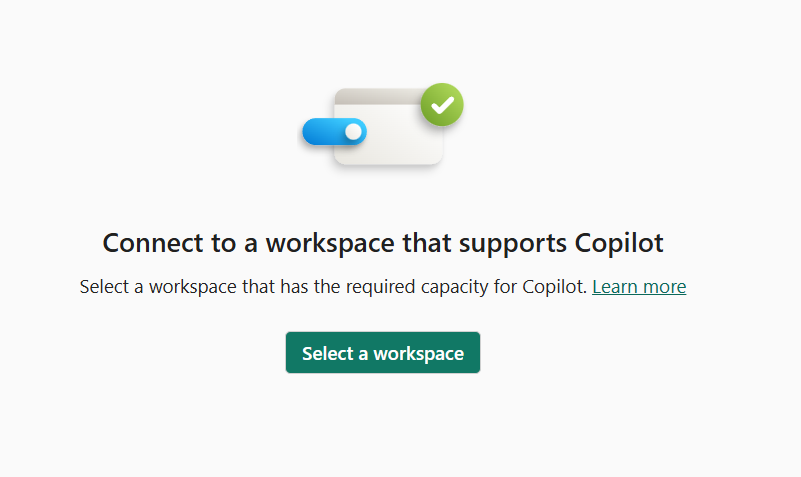
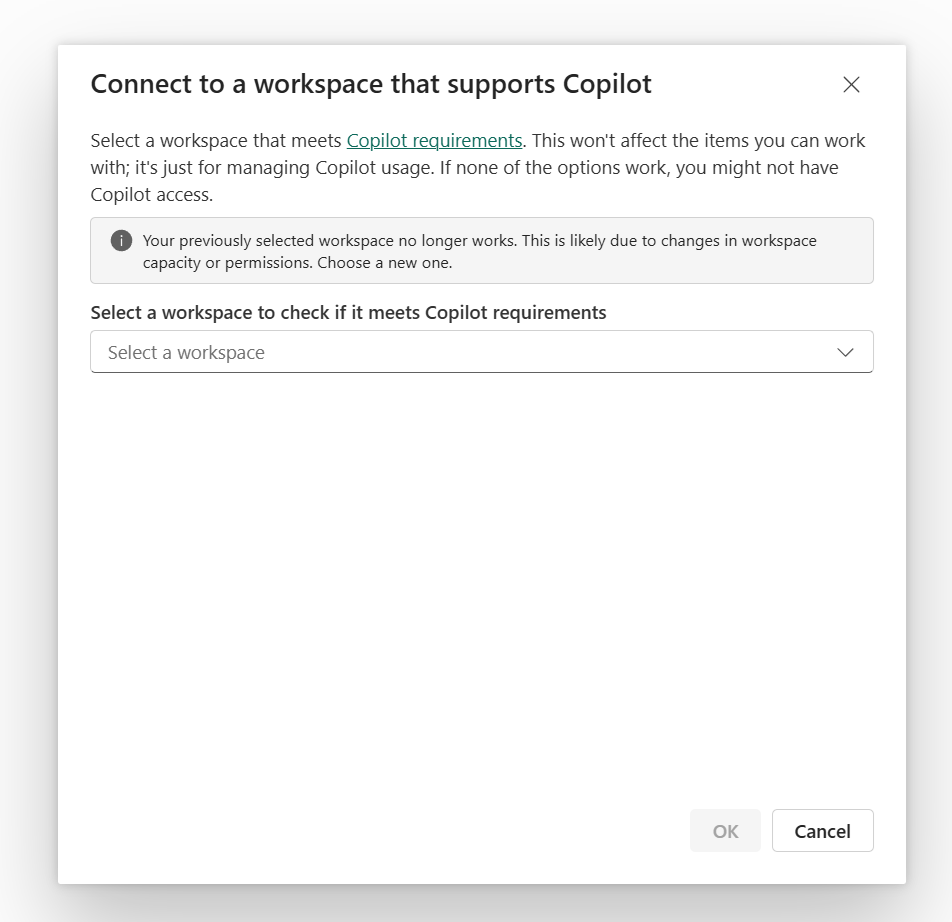
Selecting the Select a workspace button
lists workspaces you have access to that can use Copilot. After you select a
workspace, Power BI checks if Copilot is enabled. If it is, Power BI uses that
workspace for monitoring usage.
Use Copilot in Power BI Desktop
To use Copilot in Power BI Desktop without access to a Fabric
Copilot capacity, you need admin, member, or contributor access to at least
one workspace assigned to a paid Fabric capacity (F2 or higher) or Power BI
Premium capacity (P1 or higher) that has Copilot enabled.
When you use Copilot in Power BI Desktop for the first time,
you're asked to pick a Copilot-compatible workspace. You can change the
associated workspace at any time through the Settings gear in
Power BI Desktop.
Fabric Copilot capacity
A Fabric Copilot capacity is billed only for Copilot AI
consumption, which includes prompt processing and response generation. Any
downstream operations, such as querying against a semantic model, are charged
to the semantic model's capacity, not to your Fabric Copilot capacity.
Licensing requirements
To use Copilot for Power BI, you must have access to a
Premium Power BI capacity or paid Fabric capacity. Your capacity (either
Premium or Fabric) needs to be in one of the regions listed in this
article, Fabric
region availability.
Note
Copilot in Microsoft Fabric isn't supported on trial
stock-keeping units (SKUs) or trial capacities. Only paid SKUs are supported.
Considerations and limitations
- The
standalone Copilot experience is only available to customers with home
tenants in geos that support Fabric. It's available for customers with
home tenants in this
list. To use Copilot, customers don't need to have Fabric enabled,
they just need to have home tenants in one of the listed regions.
- Copilot isn't currently supported for Private Link or closed network environments.
Comments
Post a Comment
Hi User,
Thanks for visiting My Blog and please provide your valuable feedback and subscribe for more updates. Please don't post any spam content or comments.
Thank You