
Get data with Power Query available in Power BI Report Builder (Preview)

We are pleased to announce the ability to use the Get Data experience and connect to 100+ data sources such as Snowflake, Databricks and AWS Redshift from Power BI Report Builder. You can transform the data and select the M-Query to be used for the paginated report. All you need is the latest version of Power BI Report Builder Install Power BI Report Builder from the Microsoft Download Center. 


For this blog, we are creating an NYC Taxi Report paginated report with data in a Snowflake backend. To do this, launch Power BI Report Builder and navigate to the “Data” tab.
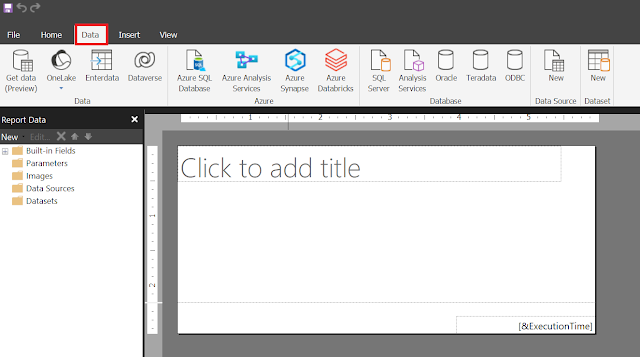

Select “Get Data” from the toolbar. 


This will launch the “Get Data” experience.

You can search for the data source that you want to connect to or View more. 

For this blog, I selected a Snowflake data source. Enter the server, warehouse and, credentials. You can use organizational accounts as well. Have questions? Learn more about the Power query online experience You can either “Create a new connection” or use a shareable cloud connection.

Choose data and select the table(s) that you want for your M-query. Select the “Transform data” button. 

Once you “Transform data”, the power query editor window will open. 

You can perform power query operations such as transforming and combining the data. The M query can also be modified in the editor. Learn more about Power QuerySelect the “Create” button once you have the Query that you want as the dataset in Power BI Report Builder. 


You will see a success messagethe dataset and, data source in Power BI Report Builder. 


Create the paginated report of your choice with the data from the data source supported via the Get Data experience.  


Want to edit the dataset? You can right click on the dataset name and “Edit Mashup.. 


Comments

Post a Comment

Hi User,
Thanks for visiting My Blog and please provide your valuable feedback and subscribe for more updates. Please don't post any spam content or comments.
Thank You

Popular posts from this blog

SSRS INTERVIEW QUESTIONS

Q: What is SSRS? Ø   SSRS or SQL Server Reporting Service is a server-based report generation software systems from Microsoft and is part of Microsoft BI. Ø   It is used for preparing and delivering interactive and variety of reports. Ø   It is administered through an web based interface. Ø   Reporting services utilizes a web service interface for supporting and developing of customized reporting applications. Ø   SSRS lets you create very rich reports (Tabular/Graphical/Interactive) from various datasources with rich data visualization (Charts, Maps, sparklines) Ø   SSRS allows are reports to be exported in various formats (Excel, PDF, word etc) Q: Explain SSRS Architecture? Reporting services architecture comprises of integrated components. It is a multi-tiered, included with application, server and data layers. This architecture is scalable and modular. A single installation can be used across multiple computers. It includes the fo...

Exception deserializing the package "The process cannot access the file because it is being used by another process."

TITLE: Microsoft Visual Studio ------------------------------ Failed to start project ------------------------------ ADDITIONAL INFORMATION: Exception deserializing the package "The process cannot access the file 'E:\SSASCube\HistoricalDataLoad\HistoricalDataLoad\bin\Development\HistoricalDataLoad.ispac' because it is being used by another process.". (Microsoft.DataTransformationServices.VsIntegration) ------------------------------ The process cannot access the file 'E:\SSASCube\HistoricalDataLoad\HistoricalDataLoad\bin\Development\HistoricalDataLoad.ispac' because it is being used by another process. (mscorlib) ------------------------------ BUTTONS: OK ------------------------------ While running SSIS package i got the error “The process cannot access the file ‘*.ispac’ because it is being used by another process”. I tried to close SSDT and run it again but, I still got the same error while compiling. Then, after searching over internet, I got...

Failed to execute the package or element. Build errors were encountered

Error: TITLE: Microsoft Visual Studio ------------------------------ Failed to execute the package or element.   Build errors were encountered. For more information, see the Output window. ------------------------------ BUTTONS: OK ------------------------------   Solution: We tried to close SSDT and run it again but, we still got the same error while running SSIS package. Then, we need to follow bellow solution: Step 1: Go to Task Manager–> Details Tab. Step 2: Locate the process “ DtsDebugHost.exe “. Kill this process. There might be multiple instances of this process. Kill all of them. Step 3: Rerun SSIS package