Create Power BI report from excel data source
Step 1:
Open Power BI desktop application

Step 2:
Click on Get data under home tab and select excel data source as shown in bellow

Step 3:
Select excel file from local system


Click on check box as shown in bellow

Step 4:
Click on Load icon

Step 5:
All fields are appearing in fields section as shown in bellow

Step 6:
Click on three dots (...) and rename the sheet name

Step 7:
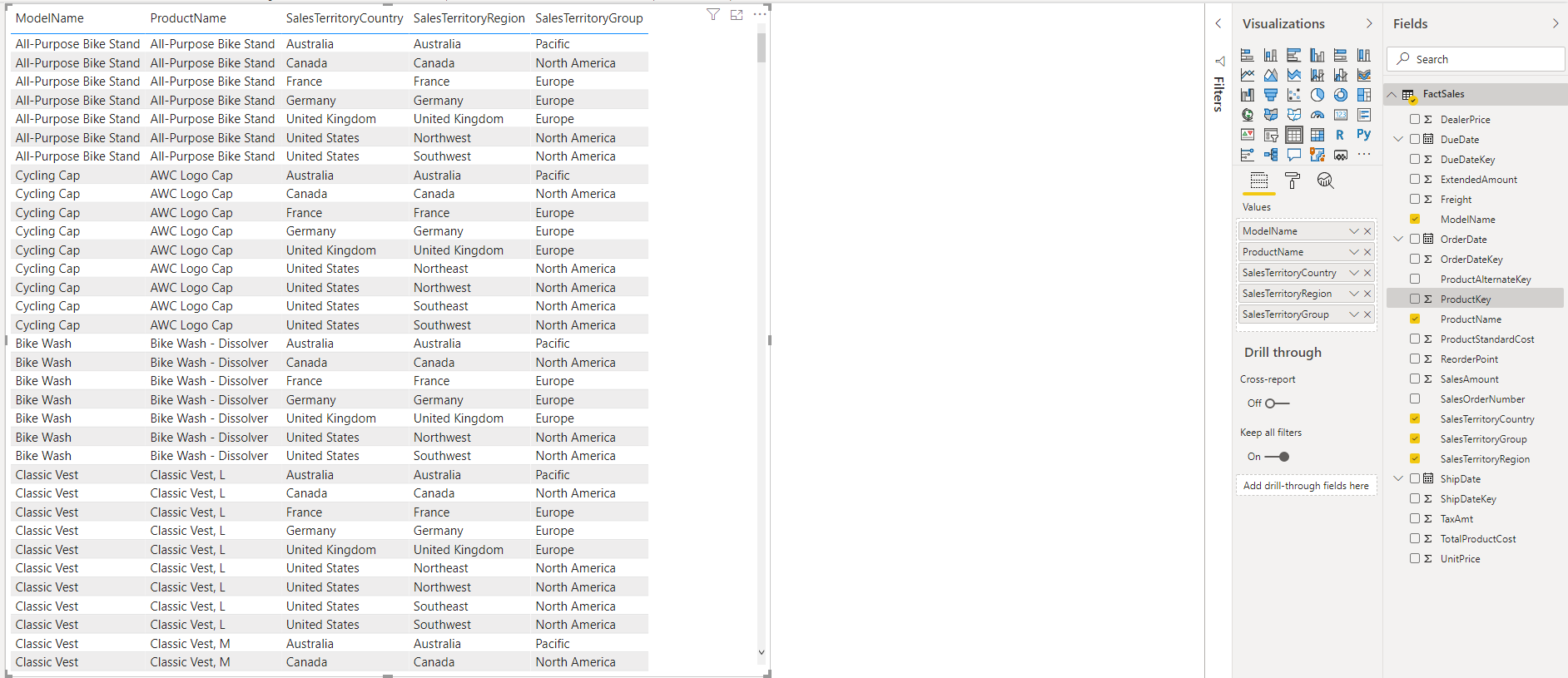
Drag and drop table from visualization tab to design panel

Step 8:
Select required fields from data set as shown in bellow
Good information
ReplyDeleteThank you for your valuable feedback
DeleteThank you for your valuable feedback
ReplyDeleteThank you for your valuable feedback
ReplyDeleteI value the article post.Really thank you! Really Great.sccm training
ReplyDeletesccm online training
Thanks for your feedback
Delete