
Power BI in Jupyter notebooks

You can now tell compelling data stories with Power BI in Jupyter notebooks. Get your Power BI analytics in a Jupyter notebook with the new powerbiclient Python package.

The new package lets you embed Power BI reports in Jupyter notebooks easily. You’ll be able to export data from visuals in a Power BI report to the Jupyter notebook for in-depth data exploration. You can also filter the report for quick analysis or use bookmarks to apply a saved view.

You can install the Power BI Client for Jupyter from PyPI and find the open-sourced Python package and associate TypeScript widget on GitHub.

Watch our latest on-demand session – Embed actionable analytics everywhere with Power BI Embedded, for a Power BI in Jupyter notebook demo!
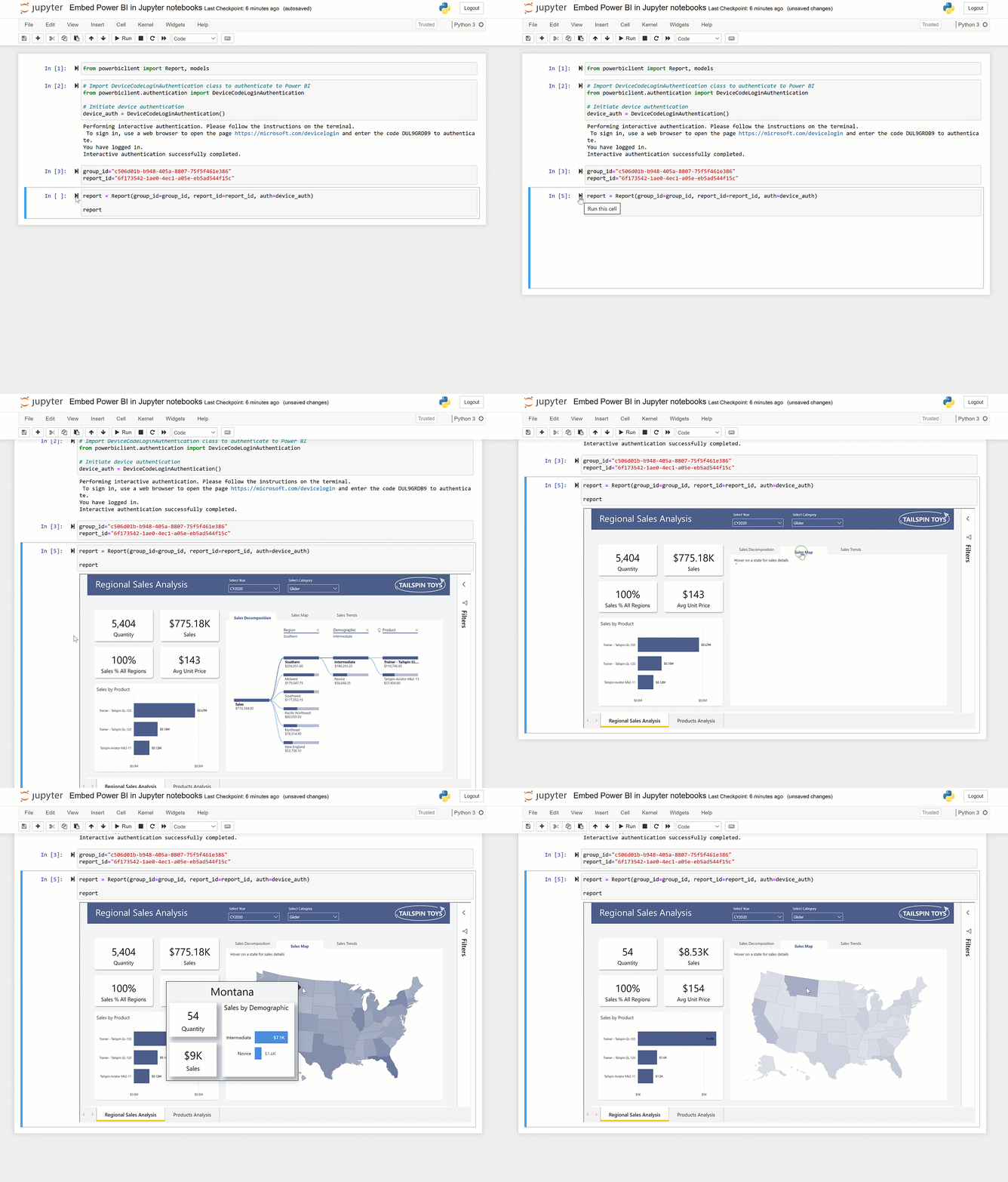
Embed Power BI in Jupyter GIF
 
For a quick peek into how to use the package in your application, check out the example below.

Install the package using pip:

pip install powerbiclient

Or if you use JupyterLab:

pip install powerbiclient
jupyter labextension install @jupyter-widgets/jupyterlab-manager

Open your notebook and add the following:

  1. Import Report class and models from the package:
    from powerbiclient import Report, models
  2. Authenticate against Power BI using Azure AD:
    # Import the DeviceCodeLoginAuthentication class to authenticate against Power BI
    from powerbiclient.authentication import DeviceCodeLoginAuthentication
    
    # Initiate device authentication
    device_auth = DeviceCodeLoginAuthentication()
  3. Set the workspace ID and report ID you’d like to embed:
    group_id=""
    report_id=""
  4. Create an instance of Power BI report and load the report to the output cell:
    report = Report(group_id=group_id, report_id=report_id, auth=device_auth)
    
    report

 
You can also authenticate against Power BI using an embed token. To do this, pass the embed token and set the token type to Embed when creating the Power BI report instance:

report = Report(group_id=group_id, report_id=report_id, access_token=access_token, token_type=models.TokenType.Embed.value)

If you want to try this experience, you should definitely check out the demo notebook. For instructions on how to run the demo, check out the demo notebook section in the README file.

The package documentation can be found in the GitHub repository wiki.

We greatly appreciate any feedback, so we can continue to improve the integration with Jupyter notebooks. Try it out, and let us know if you have any feedback using this survey.
 
Power BI Embedding in Jupyter Notebooks - Get started guide 


Hi User,
Thanks for visiting My Blog and please provide your valuable feedback and subscribe for more updates. Please don't post any spam content or comments. 

Comments

  1. Really good information to show through this blog. I really appreciate you for all the valuable information that you are providing us through your blog.

    ReplyDelete
  2. Very Informative and creative contents. This concept is a good way to enhance knowledge. Thanks for sharing. Continue to share your knowledge through articles like these.

    Data Engineering Services 

    Data Analytics Solutions

    Artificial Intelligence Solutions

    Data Modernization Solutions

    ReplyDelete

Post a Comment

Hi User,
Thanks for visiting My Blog and please provide your valuable feedback and subscribe for more updates. Please don't post any spam content or comments.
Thank You

Popular posts from this blog

SSRS INTERVIEW QUESTIONS

Q: What is SSRS? Ø   SSRS or SQL Server Reporting Service is a server-based report generation software systems from Microsoft and is part of Microsoft BI. Ø   It is used for preparing and delivering interactive and variety of reports. Ø   It is administered through an web based interface. Ø   Reporting services utilizes a web service interface for supporting and developing of customized reporting applications. Ø   SSRS lets you create very rich reports (Tabular/Graphical/Interactive) from various datasources with rich data visualization (Charts, Maps, sparklines) Ø   SSRS allows are reports to be exported in various formats (Excel, PDF, word etc) Q: Explain SSRS Architecture? Reporting services architecture comprises of integrated components. It is a multi-tiered, included with application, server and data layers. This architecture is scalable and modular. A single installation can be used across multiple computers. It includes the fo...

Exception deserializing the package "The process cannot access the file because it is being used by another process."

TITLE: Microsoft Visual Studio ------------------------------ Failed to start project ------------------------------ ADDITIONAL INFORMATION: Exception deserializing the package "The process cannot access the file 'E:\SSASCube\HistoricalDataLoad\HistoricalDataLoad\bin\Development\HistoricalDataLoad.ispac' because it is being used by another process.". (Microsoft.DataTransformationServices.VsIntegration) ------------------------------ The process cannot access the file 'E:\SSASCube\HistoricalDataLoad\HistoricalDataLoad\bin\Development\HistoricalDataLoad.ispac' because it is being used by another process. (mscorlib) ------------------------------ BUTTONS: OK ------------------------------ While running SSIS package i got the error “The process cannot access the file ‘*.ispac’ because it is being used by another process”. I tried to close SSDT and run it again but, I still got the same error while compiling. Then, after searching over internet, I got...

Failed to execute the package or element. Build errors were encountered

Error: TITLE: Microsoft Visual Studio ------------------------------ Failed to execute the package or element.   Build errors were encountered. For more information, see the Output window. ------------------------------ BUTTONS: OK ------------------------------   Solution: We tried to close SSDT and run it again but, we still got the same error while running SSIS package. Then, we need to follow bellow solution: Step 1: Go to Task Manager–> Details Tab. Step 2: Locate the process “ DtsDebugHost.exe “. Kill this process. There might be multiple instances of this process. Kill all of them. Step 3: Rerun SSIS package